

SSD Guide: Understanding Solid State Storage
An SSD (Solid State Drive) is the single most impactful upgrade you can make to any PC. It transforms boot times, application responsiveness, and game...

An SSD (Solid State Drive) is the single most impactful upgrade you can make to any PC. It transforms boot times, application responsiveness, and game loading speeds. The difference between a system with and without an SSD is immediately obvious your computer feels dramatically faster.

Why SSDs Matter
Modern systems must have at least one SSD. Hard disk drives (HDDs) are too slow for the operating system and applications. SSDs provide:
Boot times – Windows boots in 15-30 seconds instead of 60+ seconds
Application launch – Programs open instantly instead of loading for several seconds
Responsiveness – System feels snappy and reactive to user input
Gaming performance – Game load times drop from 2+ minutes to 15-30 seconds
Reliability – No moving parts means fewer mechanical failures
An SSD is non-negotiable for any modern PC. Even a budget SSD outperforms premium HDDs.
SSD Capacity: How Much Do You Need?
256GB Minimum
Sufficient for Windows installation (25-30GB) and essential applications. Leaves limited room for games or large files. Increasingly tight for modern computing.
512GB – Practical Minimum
Comfortable for OS, applications, and a few games. Better margin for updates and temporary files. Recommended as the bare minimum for new builds.
1TB – Sweet Spot
Ideal capacity for most users. Accommodates OS, applications, and an extensive game library (3-5 modern AAA games). Best balance between capacity and cost.
2TB+
Generous capacity for content creators, gamers with massive libraries, or users planning long-term storage. Single drive handles OS, applications, and media without needing secondary storage.
Capacity Planning for Gaming
Modern AAA games are large:
Typical AAA game: 100-150GB
OS Windows 11: 25-30GB
Applications (Steam, Discord, browser, etc.): 10-20GB
A 1TB SSD allows 3-4 AAA games plus OS and applications comfortably. 2TB provides space for 8-10 games without filling.
SSD Types: SATA vs NVMe
SATA SSDs
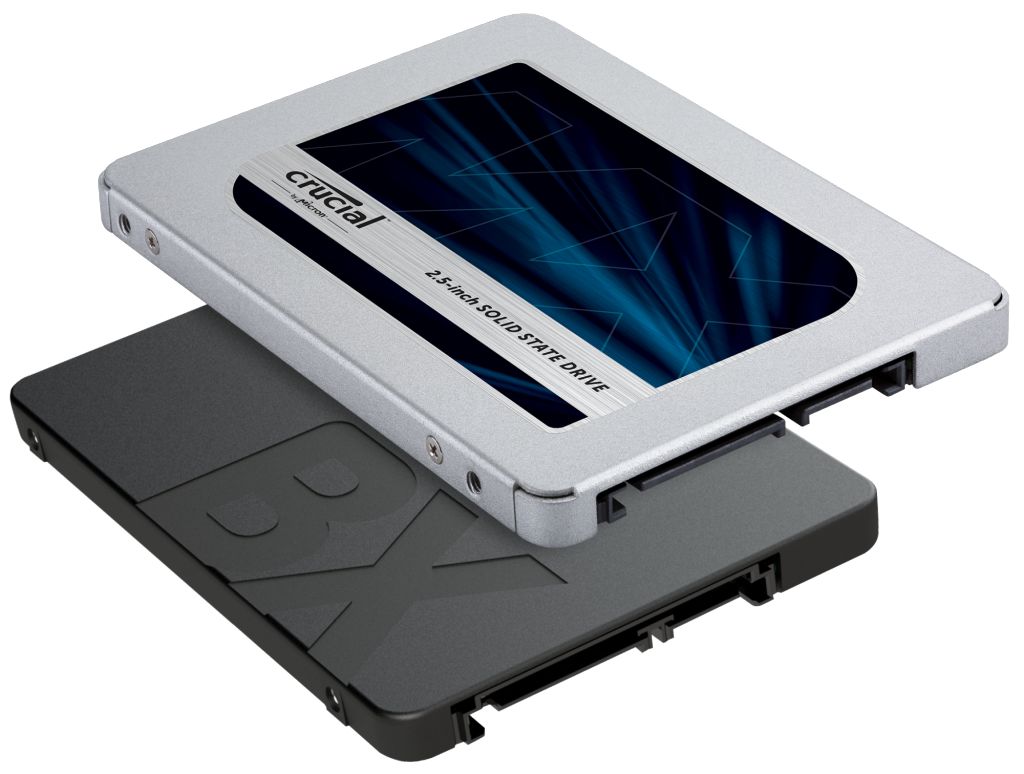
Traditional 2.5-inch drives using Serial ATA interface.
Speed: Up to 550 MB/s read/write
Form factor: 2.5 inches, resembles thin HDD
Connector: SATA data cable + SATA power cable
Cost: Least expensive per GB
Performance: Adequate for OS and applications, noticeably slower than NVMe for large file transfers
SATA SSDs are becoming obsolete as NVMe prices drop. Not recommended for new builds except extreme budget constraints.
NVMe M.2 SSDs
Modern high-speed drives using NVMe protocol over PCIe.
Speed: PCIe 3.0 up to 3,500 MB/s, PCIe 4.0 up to 7,000 MB/s, PCIe 5.0 up to 14,000 MB/s
Form factor: Compact M.2 stick, typically 22mm × 80mm
Connector: Direct PCIe M.2 slot on motherboard, no separate power cable needed
Cost: Slightly more than SATA, price gap narrowing
Performance: Dramatically faster than SATA
NVMe is the current standard. All modern motherboards include at least one M.2 NVMe slot.
PCIe Generations and Practical Speed
PCIe 3.0 NVMe
Speed: Up to 3,500 MB/s theoretical maximum
Real-world: 3,000-3,400 MB/s sustained
Supported by: Older boards (Z690, B660, X570, B550) and all newer platforms
Performance gap over SATA: Noticeable in large file transfers, marginal in everyday use
Use case: Excellent value for gaming and general computing
Examples: WD Blue SN570, Crucial P3, Samsung 970 EVO
PCIe 4.0 NVMe
Speed: Up to 7,000 MB/s theoretical maximum
Real-world: 6,500-7,000 MB/s sustained
Supported by: X870/X870E (AMD), Z890/B890 (Intel), some older boards (Z790)
Performance gap over PCIe 3.0: Approximately 2x faster in benchmarks, marginal in real-world gaming
Use case: Professional video editing, large file transfers, content creation
Examples: Samsung 990 Pro, WD Black SN850X, Crucial P5 Plus
PCIe 5.0 NVMe
Speed: Up to 14,000 MB/s theoretical maximum
Real-world: Limited adoption, true PCIe 5.0 speed rarely reached
Supported by: Newest high-end boards only
Performance gap over PCIe 4.0: Massive in benchmarks, essentially unnoticeable in real-world use (2024-2025)
Use case: Overkill for gaming; may benefit extreme professional workflows
Examples: Samsung 990 Pro with PCIe 4.0 adapters, upcoming true PCIe 5.0 drives
Practical Reality:
For gaming and general computing, PCIe 3.0 NVMe offers excellent value. PCIe 4.0 provides measurable improvement for professionals working with large files. PCIe 5.0 is cutting-edge but unnecessary for consumer use today.
Motherboard Compatibility
Your motherboard determines which NVMe speeds you can use.
Check Your Motherboard:
Visit manufacturer website with your exact motherboard model
Identify M.2 slot capabilities (PCIe 3.0, 4.0, or 5.0)
Most boards have multiple M.2 slots with potentially different speeds
Example Intel Z790:
Slot 1 (M2_1): PCIe 4.0
Slot 2 (M2_2): PCIe 3.0
Slots 3+ (if present): PCIe 3.0
Install your fastest, most-used SSD in the fastest slot. Secondary storage can use slower slots.
AMD AM5:
Most X870/X870E boards: PCIe 5.0 capable
Some X870 boards: PCIe 4.0 only (verify specifications)
Older AM5 boards: PCIe 4.0 maximum
SSD Specifications to Consider
DRAM Cache
Many SSDs include onboard DRAM caching controller, improving performance for large transfers. DRAM-less SSDs (HMB Host Memory Buffer) use system RAM instead.
With DRAM: Better sustained performance
Without DRAM (HMB): Slower for very large transfers, adequate for gaming
Most mainstream SSDs include DRAM; budget models sometimes omit it.
TLC vs QLC NAND
The storage cells design affects speed and lifespan.
TLC (Triple-Level Cell): Three bits per cell, standard across most modern SSDs, excellent performance and endurance
QLC (Quad-Level Cell): Four bits per cell, lower cost, slightly slower, adequate lifespan (8-10 years typical use)
TLC is the practical standard; QLC is budget-oriented but acceptable.
Write Endurance (TBW)
Terabytes Written indicates total data the drive can write before potential failure.
Budget drives: 300-500 TBW
Mainstream drives: 600-1200 TBW
High-end drives: 1800-3600 TBW
For consumer use, all values provide 5+ years of typical use before reaching limits. Not a practical concern.
Warranty
Budget SSDs: 3-year warranty
Mainstream SSDs: 5-year warranty
Premium SSDs: 5-10 year warranty
Longer warranties indicate manufacturer confidence. All reputable brands stand behind their products.
Storage Configuration Strategy
Single SSD Approach (Most Common)
One 1TB NVMe SSD handles:
Windows 11 (25-30GB)
Applications and programs (20-50GB)
Games (500-700GB space available)
Personal files and media (remaining space)
Sufficient for most users. Simplest approach with no complexity.
Dual-Drive Approach
Primary (NVMe): 500GB-1TB for OS, applications, active games
Secondary (SSD or HDD): 1-4TB for game library, media, backups
Recommended for:
Gamers with massive game libraries
Content creators managing large projects
Users planning extensive media storage
Benefits: Segregates fast OS/applications from slower storage, extends primary SSD lifespan by limiting write cycles.
Multiple M.2 Slots on One Motherboard
Modern motherboards often include 3-6 M.2 slots. Important considerations:
RAID Configurations
Some boards support RAID (Redundant Array of Independent Disks) combining multiple drives for performance or redundancy. Not recommended for consumer builds complexity outweighs benefits.
Slot Bandwidth Sharing
Some boards share PCIe lanes between slots. Using two drives simultaneously may reduce each to PCIe 3.0 even if slots support PCIe 4.0. Check motherboard manual for specific behavior.
Temperature Management
Stacking M.2 drives closely generates heat. Some boards include heatsinks and thermal pads for temperature management.
Should You Upgrade from HDD to SSD?
If your PC has an HDD:
Installing an SSD is the single best upgrade you can make. Responsiveness improvement is dramatic and immediately obvious.
If you have a SATA SSD:
Upgrading to NVMe improves speed in benchmarks but real-world gaming/application performance gains are modest (5-15% improvement). Not urgent unless money isn’t a concern.
If you have PCIe 3.0 NVMe:
Upgrading to PCIe 4.0 provides marginal improvement for gaming, more meaningful improvement for large file transfers and professional work. Not essential for gaming.
SSD Lifespan and Degradation
Typical Lifespan
Modern SSDs last 5-10+ years under normal use. Failure is rare before reaching TBW write limits.
Factors Affecting Longevity
Temperature (keep below 70°C for optimal lifespan)
Power stability (good PSU protects against damage)
Write cycles (gaming doesn’t stress SSDs much)
Manufacturing quality (reputable brands > unknown brands)
Signs of SSD Failure
System won’t boot from that drive
Files become corrupted
Read/write errors appearing in logs
Unusual system crashes related to storage
Prevention: Use reputable brands with warranty coverage.