

Motherboard Buying Guide: Everything You Need to Know
If you’re building a PC or planning upgrades later, the motherboard is fundamental. It determines which processor you’ll use and which components are compatible with...

If you’re building a PC or planning upgrades later, the motherboard is fundamental. It determines which processor you’ll use and which components are compatible with your build. Choosing the right motherboard makes the entire building process smoother.
What is a Motherboard?
A motherboard is a circuit board that acts as the central hub connecting all your PC components. It provides physical slots and connectors for your CPU, GPU, RAM, storage drives, and power distribution. Think of it as the skeleton of your computer everything else connects to it, and it coordinates communication between components.
Inside the motherboard you’ll find circuits, transistors, capacitors, slots, connectors, and heat sinks that route signals and power throughout your system. While the technical complexity is extensive, understanding a few key specifications will help you make the right choice for your needs today and future upgrades.

Choose Your Platform (Intel or AMD)
Your first decision is choosing between Intel and AMD processors. This determines which motherboards are compatible with your build.
Intel offers CPUs from entry-level to high-performance workstation-grade processors. Recent generations use LGA1700 or LGA1851 sockets depending on processor generation. Intel processors often excel in single-core performance, beneficial for gaming where one fast core matters more than multiple slower cores.
AMD’s Ryzen lineup ranges from entry-level to powerful workstation CPUs. They use AM4 (older generations) or AM5 (current and future generations) sockets. AMD processors typically offer more cores at similar price points, excelling at multithreaded tasks like video editing, 3D rendering, and content creation.
Both platforms offer excellent performance. Your choice depends on your specific use case gaming, productivity, content creation, or general computing.
Both platforms offer excellent performance. Your choice depends on your specific use case gaming, productivity, content creation, or general computing.
Select Socket and Chipset
Once you’ve chosen your processor, you need a motherboard with compatible socket and chipset.Understanding Sockets
A socket is the physical mechanism connecting your CPU to the motherboard. Think of it as the “slot” where your processor sits.|
Socket |
Year Introduced |
CPU Families Supported |
Computer Type |
Chipsets Supported |
|
AM4 |
2017 |
Ryzen 1000 to 5000 Series (Zen–Zen 3) |
Desktop |
A320, B350, B450, X370, X470, X570 |
|
AM5 |
2022 |
Ryzen 7000, 8000, 9000 Series (Zen 4+) |
Desktop |
X670E, X670, B650E, B650, X870E, X870, B850, B840, A620 |
|
LGA1700 |
2021 |
12th to 14th Gen Core (Alder→Raptor) |
Desktop |
H610, B660, H670, Z690, B760, Z790 |
|
LGA1851 |
2024 |
Core Ultra 200 (Arrow Lake) |
Desktop |
Z890, B860 |
- LGA1700 – Supports 12th, 13th, and 14th generation Intel Core processors. This socket has been used for multiple generations, ensuring platform longevity.
- LGA1851– The newest Intel socket for Arrow Lake processors, offering latest technology and features.
- AM4 – Supports older Ryzen processors (3000 and 5000 series). No longer receives new CPUs, but plenty of processors available.
- AM5 – Current AMD socket supporting Ryzen 7000 and 9000 series. Officially supported through 2025 and beyond, offering excellent future-proofing.
- Threadripper – TR4, TRX40, sWRX8, and sTR5 sockets are designed for high-core-count workstations with specialized requirements.
Understanding Chipsets
The chipset determines what features and components your motherboard supports. It’s the hardware and software that allow components to communicate. Intel Chipsets (LGA1700):- B760 – The practical choice for most users. Provides solid connectivity, stability, and all features average builders need. No overclocking support.
- Z790 – Adds overclocking capabilities, allowing you to push your CPU beyond stock speeds. Recommended only if you specifically plan to overclock.
- H770 – Entry-level option with fewer features than B760. Suitable for basic systems not requiring extensive expansion.
- Z890 – The newest Intel chipset featuring PCIe 5.0 support and advanced features. Recommended only for high-end builds prioritizing cutting-edge technology.
- B860 – Mid-range alternative for Arrow Lake processors with solid feature set.
- A520 – Entry-level with limited features. Adequate for basic builds but restrictive for upgrades.
- B550 – The sweet spot for average users. Provides PCIe 4.0 support, solid connectivity, and good value. Recommended for most builds.
- X570 – High-end option offering PCIe 4.0, multi-GPU support, and extensive connectivity. Choose only if you need specific advanced features.
- X870/ X870E – Current generation featuring PCIe 5.0 support and AMD EXPO technology (memory overclocking profiles). The E variant includes more PCIe lanes for extensive expansion.
- B850/ B650/ B650E – Mainstream and upper mainstream options, PCIe 5.0 for GPU or storage (E), best for most gamers and upgraders.
- AM5 exclusively requires DDR5 memory, unlike LGA1700 which supports both DDR4 and DDR5.
Key Consideration
Different chipsets support different component combinations. Some limit RAM speed, storage connections, or expansion capabilities. Verify that your chosen motherboard-chipset combination supports the components you plan to use now and in the future.Choose Form Factor
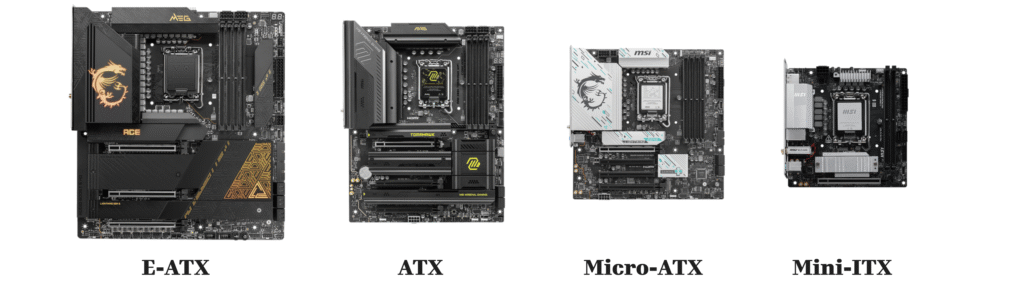
Motherboards come in different physical sizes form factors which determine how many components they support and what case sizes are compatible.
Common Form Factors
ATX (305mm × 244mm)
Full-size motherboards offering maximum expandability. Typically include 7 PCIe slots and 4 RAM slots. Provide extensive connectivity for multiple GPUs, storage devices, and expansion cards. Best for users wanting multiple upgrades and expansion capability.
Micro-ATX (244mm × 244mm)
Slightly smaller than ATX, balancing features with compact size. Usually include 4 PCIe slots and 4 RAM slots. Provide adequate expansion for most users without excessive size. Fit in mid-tower and some full-tower cases.
Mini-ITX (170mm × 170mm)
The smallest mainstream form factor, approximately 6.7″ × 6.7″. Include 1 PCIe slot and 2 RAM slots. Suitable for compact builds and HTPCs (Home Theater PCs) where space is limited. Require careful component selection due to space constraints.
E-ATX (Larger than standard ATX)
Oversized boards for high-end workstations and enthusiast builds. Require full-tower cases. Include extensive expansion slots beyond standard ATX.
Choosing Your Form Factor
Larger boards typically support more components and expansion. However, only choose based on your actual needs. A Mini-ITX board works fine if you’re not planning multiple GPUs or extensive storage. A full-size ATX is unnecessary if you have space constraints.
Consider your case choice first your motherboard must physically fit in your chosen case.
Understand Expansion Slots
Motherboards include various expansion slots for connecting graphics cards, sound cards, WiFi adapters, and other components.
PCIe Slots (Primary Expansion Standard)
PCIe (Peripheral Component Interconnect Express) is the modern standard for expansion. Motherboards include multiple slot sizes, each offering different bandwidth and physical space.
Slot Sizes:
x1 slot – Single lane, smallest connector, used for WiFi cards and simple expansion devices
x4 slot – Four lanes, typically used for NVMe storage devices
x8 slot – Eight lanes, occasionally used for secondary GPUs or specialized cards
x16 slot – Sixteen lanes, the standard slot for graphics cards
Most motherboards have limited x16 slots. Check the specifications of your chosen expansion cards some GPUs require space equivalent to two slots due to physical cooler size, potentially blocking adjacent x1 slots.
PCIe Generations
Different PCIe generations offer different bandwidth:
PCIe 3.0 – 985 MB/s per lane, widely supported, sufficient for most uses
PCIe 4.0 – 1,969 MB/s per lane, current standard on newer boards, beneficial for high-speed storage
PCIe 5.0 – 3,938 MB/s per lane, newest generation, cutting-edge but rarely provides practical benefit for gaming today
For most users, PCIe 3.0 and 4.0 are functionally equivalent in real-world performance. PCIe 5.0 is overkill unless you’re working with extremely demanding professional applications.
Number of Expansion Slots
More slots provide more flexibility, but consider your actual needs. Most users need one x16 slot for a GPU and perhaps one or two additional slots for WiFi or storage expansion. Extremely extensive expansion is rare.
GPU Support
Your motherboard must support the graphics card you plan to use.
Integrated Graphics
Some Intel Core processors and AMD Ryzen processors (with “G” suffix like Ryzen 5 8500G) include integrated graphics. These provide basic video output without a dedicated GPU adequate for office work, web browsing, and light gaming. No motherboard-specific GPU slots required.
Dedicated Graphics Cards
Most modern GPUs connect via PCIe x16 slots and require PCIe 3.0 or newer. Important considerations:
Physical Space: Many GPUs require space equivalent to two slots. Verify your motherboard has adequate PCIe slot arrangement to accommodate your chosen GPU without blocking other slots you need.
Power Delivery: Most GPUs require additional power via 6-pin or 8-pin connectors from your power supply. Verify your PSU can provide adequate power connectors.
Multiple GPUs: Connecting two or more GPUs requires two PCIe x16 slots and specific motherboard support. Modern builds rarely use multiple GPUs a single powerful card is the practical approach.
RAM Slots and Compatibility
RAM connects to your motherboard via DIMM slots. The number and type of slots determine your memory capacity.
Slot Count
Motherboards typically include 2, 4, or 8 DIMM slots. More slots provide flexibility for capacity upgrades. For most users, 4 slots are adequate allowing room for future expansion.
RAM Types
Motherboard socket and chipset determine RAM type:
DDR4 – Older standard, still widely available, compatible with many LGA1700 boards
DDR5 – Newer standard, required for AM5 and newer Intel boards, offers higher bandwidth
Choose your motherboard first, then select compatible RAM type. Don’t assume all LGA1700 boards support DDR5 verify specifications.
Dual-Channel Configuration
Install RAM in pairs (two modules) for optimal performance. For example, use two 16GB modules rather than one 32GB module. Motherboards with 4 slots allow two pairs for additional capacity.
Storage Connectivity
Your motherboard must provide connectors for your storage drives SSDs and HDDs.
SATA Connections
SATA is the traditional storage connection standard. Motherboards include multiple SATA ports (typically 4-6).
SATA SSD: Up to 550 MB/s transfer speed
HDD: Typically 100-150 MB/s
SATA provides adequate performance for general use, though SSDs are notably faster.
M.2 NVMe Slots
M.2 is the modern connector for high-speed NVMe SSDs using PCIe connectivity. Most modern motherboards include 2-6 M.2 slots.
PCIe 3.0 NVMe: Up to 3,500 MB/s
PCIe 4.0 NVMe: Up to 7,000 MB/s
PCIe 5.0 NVMe: Up to 14,000 MB/s
NVMe offers dramatically faster speeds than SATA. For OS and applications, an NVMe SSD provides noticeably faster boot and load times.
Storage Planning
A practical approach: One M.2 NVMe slot for your operating system and applications, additional SATA or M.2 slots for storage expansion and backups. Verify your motherboard supports the storage configuration you need.
Other Motherboard Connections
Modern motherboards include numerous internal connectors for case features and add-ons.
Fan Headers
Motherboards include multiple connectors for case fans and radiators. These allow fan speed control through BIOS. Verify adequate fan headers for your cooling setup.
USB Headers
Case front-panel USB ports require internal USB headers on the motherboard. Motherboards include USB 2.0 and USB 3.0 headers. Check that your case and motherboard are compatible.
RGB Headers
RGB lighting controllers (case fans, strips, coolers) require RGB headers. Motherboards vary in RGB connectivity options. If aesthetics matter to you, verify RGB support.
Audio Jacks
Internal audio connectors provide case front-panel audio. Standard on most boards.
Specialized Connectors
Premium motherboards include additional headers for water cooling systems, RGB hubs, and proprietary manufacturer software. These aren’t necessary for basic builds but enable advanced customization.