

Hard Disk Drive (HDD) Guide: Secondary Storage for Your PC
Hard disk drives (HDDs) remain relevant for secondary storage despite SSDs becoming the primary standard. HDDs excel at providing affordable mass storage for media libraries,...

Hard disk drives (HDDs) remain relevant for secondary storage despite SSDs becoming the primary standard. HDDs excel at providing affordable mass storage for media libraries, backups, and files you don’t access frequently. Understanding when and how to use HDDs ensures you maximize storage capacity without overpaying.
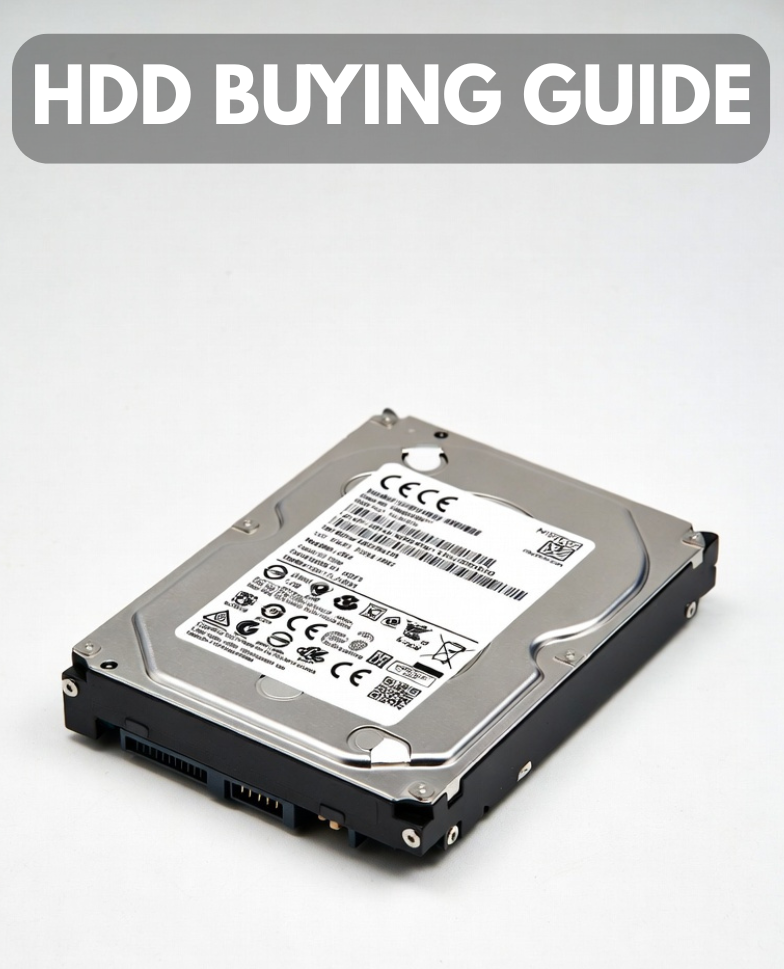
Why HDDs Still Matter
While SSDs revolutionized primary storage, HDDs serve a distinct purpose: affordable high-capacity backup and archival storage.
HDDs Provide:
Massive storage at lowest cost per GB
Reliable long-term archival for media libraries
Practical solution for bulk backups
Secondary expandability without replacing primary drive
HDDs Don’t Provide:
Speed comparable to SSDs
Suitable performance for operating systems
Ideal fit for active applications
Responsiveness users expect for primary use
A hybrid approach fast SSD for OS and applications, spacious HDD for media and archives balances performance with storage capacity.
HDD Reliability: The Primary Consideration
The single most important HDD specification is reliability how long the drive lasts without failure. Unfortunately, reliability isn’t printed on product boxes.
Manufacturer Testing
Independent testing labs (Backblaze, Seagate’s internal labs) track real-world failure rates over time.
Western Digital:
Historical failure rates consistently among the lowest
Reliable across all product lines
Blue series (consumer) shows excellent longevity
Black series performs similarly with minimal perceived advantage
Seagate Barracuda:
Lower reliability ratings than Western Digital
Higher failure rates, especially in first year of operation
Still acceptable for non-critical backups
Significantly cheaper than WD equivalents
Better performance than WD in benchmarks
Other Manufacturers:
Hitachi (owned by WD) carries WD’s reputation
HGST (Hitachi subsidiary) offers enterprise-grade reliability
Budget brands: Higher failure rates, not recommended
Practical Reality: Western Digital dominates reliability rankings. Seagate offers competitive pricing with acceptable (though lower) reliability. For critical data, WD is worth the premium.
HDD Specifications
RPM (Revolutions Per Minute)
Speed the platter spins, affecting performance and heat generation.
5400 RPM – Standard consumer drives. Quieter, cooler, more efficient, but slower. Adequate for backups and media storage.
7200 RPM – Higher performance. Hotter, louder, more power consumption. Performance difference for secondary storage is negligible.
10,000+ RPM – Enterprise/data center only. Not available in consumer products.
For secondary storage, RPM differences are imperceptible. Prioritize reliability over speed.
Cache (Buffer)
Onboard memory speeding up drive access.
32MB cache – Standard for consumer drives
64MB cache – Premium models, marginal real-world improvement
256MB+ cache – Enterprise/server drives
Cache makes minimal practical difference for consumer use.
Interface
SATA III (6Gb/s) – Universal standard for consumer drives
SAS – Enterprise alternative, not relevant for consumers
All modern consumer HDDs use SATA III.
Warranty
Manufacturer confidence indicator.
1-2 year warranty – Budget drives or suspicious brands
3-year warranty – Standard consumer drives (WD Blue, Seagate Barracuda)
5-year warranty – Premium models or manufacturer confidence (some WD Red)
Longer warranties suggest manufacturer reliability confidence.
Form Factor
3.5″ desktop drives – Standard for PCs, highest capacity options
2.5″ laptop drives – For laptops and compact systems
2.5″ external – Portable drives with USB enclosures
For desktop PC secondary storage, 3.5″ drives provide best capacity and value.
HDD Capacity Selection
Storage Needs Assessment
Light User (Media, Documents):
2TB sufficient for years of storage
Growing media collection rarely exceeds 2TB without management
Moderate User (Gaming, Media, Backups):
4TB practical for game backups and media
Accommodates substantial media library plus backup redundancy
Heavy User (Extensive Media, Professional Archives):
6-8TB for extensive 4K video, photo libraries
Provides room for multiple backups without frequent cleanup
Professional/Data-Heavy:
10TB+ for substantial archives, professional projects
Supports redundancy and multiple backup copies
Larger drives provide better value but use more power and generate more heat. Choose capacity matching your actual needs.
Optimal Storage Configuration
Single Drive (Budget Constrained):
1TB+ NVMe SSD for OS and applications
Adequate for modest media libraries and gaming
Simple, cost-effective
Two-Drive Setup (Recommended):
500GB-1TB NVMe SSD for OS, applications, active games
2-4TB HDD for backups, media, inactive games
Balances performance with capacity
Optimal for most users
Three-Drive Approach (Content Creators):
1TB NVMe SSD for OS and active projects
2TB+ SSD for working projects and current media
4-8TB HDD for archives and historical media
Separates fast primary work from slower archival
HDD Reliability and Lifespan
Typical Lifespan
Well-maintained HDDs last 5-10+ years. Consumer drives reach end-of-life when reaching design limits, not sudden failure.
Factors Affecting Lifespan
Temperature – Every 5°C above 50°C roughly halves expected lifespan
Humidity – Extreme moisture or dryness accelerates failure
Vibration – Excessive vibration degrades bearings
Power stability – Quality PSU protects against power-related damage
Usage patterns – Constant 24/7 operation wears drives faster than periodic use
Signs of Imminent Failure
Unusual clicking or grinding noises
System fails to recognize drive
Frequent freezing or read errors
Significantly slower performance
S.M.A.R.T. errors reported by monitoring software
Prevention and Response
Regular backups make drive failures non-catastrophic
Monitor drive health with S.M.A.R.T. monitoring software
Replace aging drives preemptively (5+ years old)
Maintain cool operating temperatures
Use quality power supplies
HDD vs Cloud Storage
When to Use Local HDD:
Large media libraries (requires cloud cost justification)
Frequent access to files
Privacy-sensitive data requiring offline storage
No internet dependency
When to Use Cloud:
Redundancy without managing multiple drives
Access from multiple devices
Automatic backup without manual management
Moderate data volume
Practical Approach:
Combine local HDD backup with selective cloud backup for critical files. Local storage provides speed and privacy; cloud provides redundancy and accessibility.